Dashboard
Your personalized command center for the regulatory signals that matter to your role.
Overview
The Dashboard gives you a real-time summary of regulatory activity across the sources your organization tracks. Everything on the Dashboard is scoped to your current role — so two people at the same organization see activity filtered to their own function.
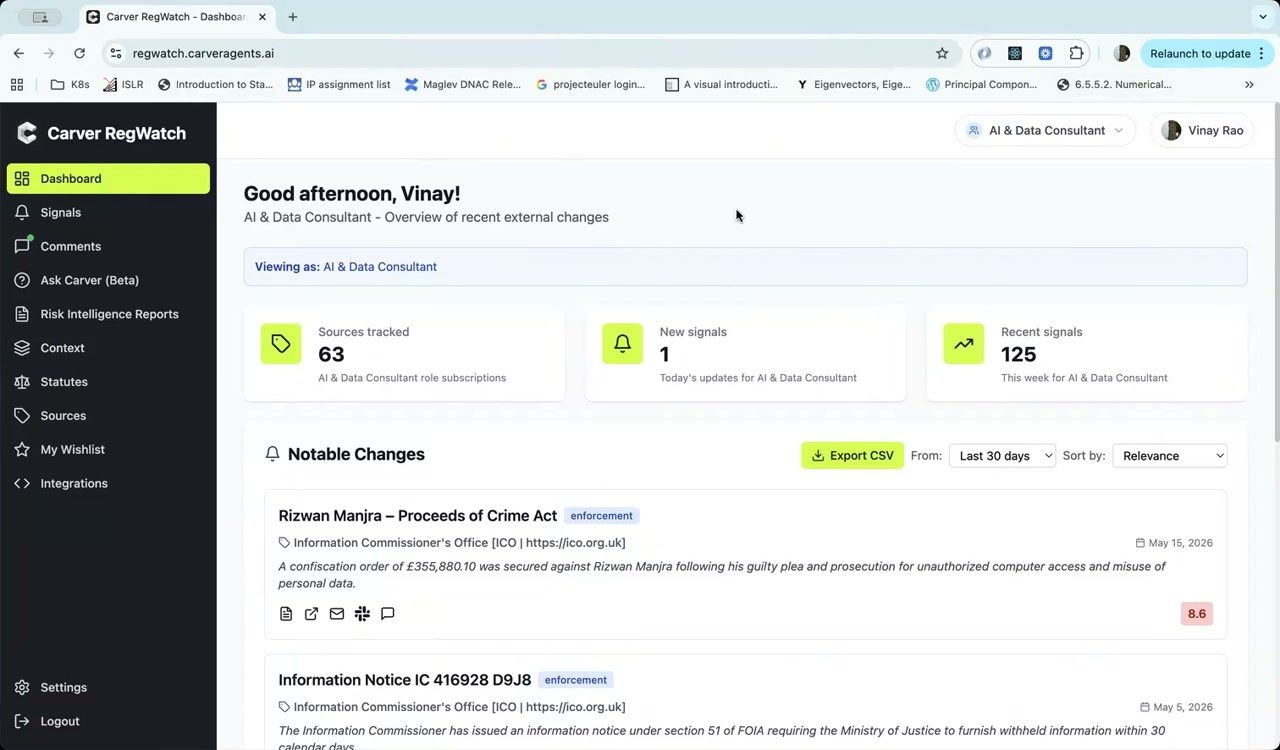
Stats Bar
The three counters at the top summarize your monitoring activity at a glance:
| Stat | What it shows |
|---|---|
| Sources tracked | Number of regulatory bodies you are subscribed to under your current role |
| New signals | New items detected today across your subscribed sources |
| Recent signals | Total items detected in the past 7 days |
All counts are scoped to your active role. If your organization has multiple roles (e.g., "AI & Data Consultant", "Legal"), switching roles updates all three numbers.
Notable Changes
Below the stats bar, the Notable Changes feed lists the most relevant recent regulatory updates from your tracked sources. Each item shows:
- Title and source institution
- Publication date
- AI-generated summary — a one-sentence description of what changed
- Relevance score (0–10) — how closely this update matches your role's focus areas
- Update type tag (e.g.,
enforcement,guidance,consultation) - Action icons — open detail, share, email, send to Slack, add comment
Filtering and sorting
Use the controls in the top-right of the Notable Changes section to:
- Date range — change the lookback window (Last 7 days, Last 30 days, Last 90 days)
- Sort by — switch between Relevance and Date
To export the current view as a spreadsheet, click Export CSV.
Signal Detail
Click any item in the Notable Changes feed to open the full detail panel:
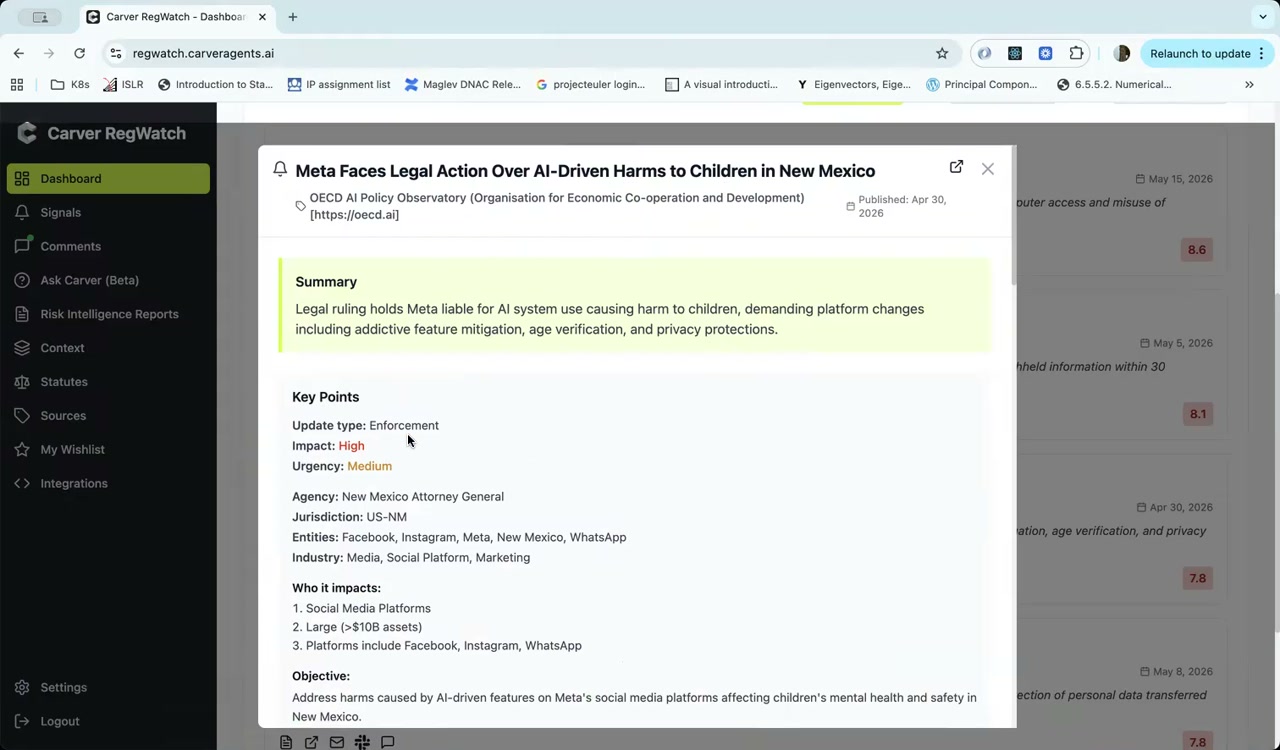
The detail panel contains:
- Summary — AI-generated paragraph summarizing the regulatory action
- Key Points — structured metadata:
- Update type (Enforcement, Guidance, Consultation, etc.)
- Impact level (High / Medium / Low)
- Urgency level
- Issuing agency and jurisdiction
- Affected entities and industries
- Who it impacts — business types or firm sizes affected
- Objective — the stated purpose of the regulation
- Cross-references — links to news articles and secondary sources covering the same event
- Tags — topic tags for search and filtering
Role Switching
If your account has access to multiple roles, use the role selector in the top-right corner to switch context. The Dashboard, Signals, and Sources views all update to reflect the selected role's subscriptions and focus areas.
Tip
Your organization admin manages roles and their regulatory focus areas. Contact them to update the sources or focus areas assigned to your role.